How to Check in Guests from your Dashboard.
Log in to your Mainstack Dashboard. On the Home page, scroll to the Mainstack Apps section and click on Storefront.
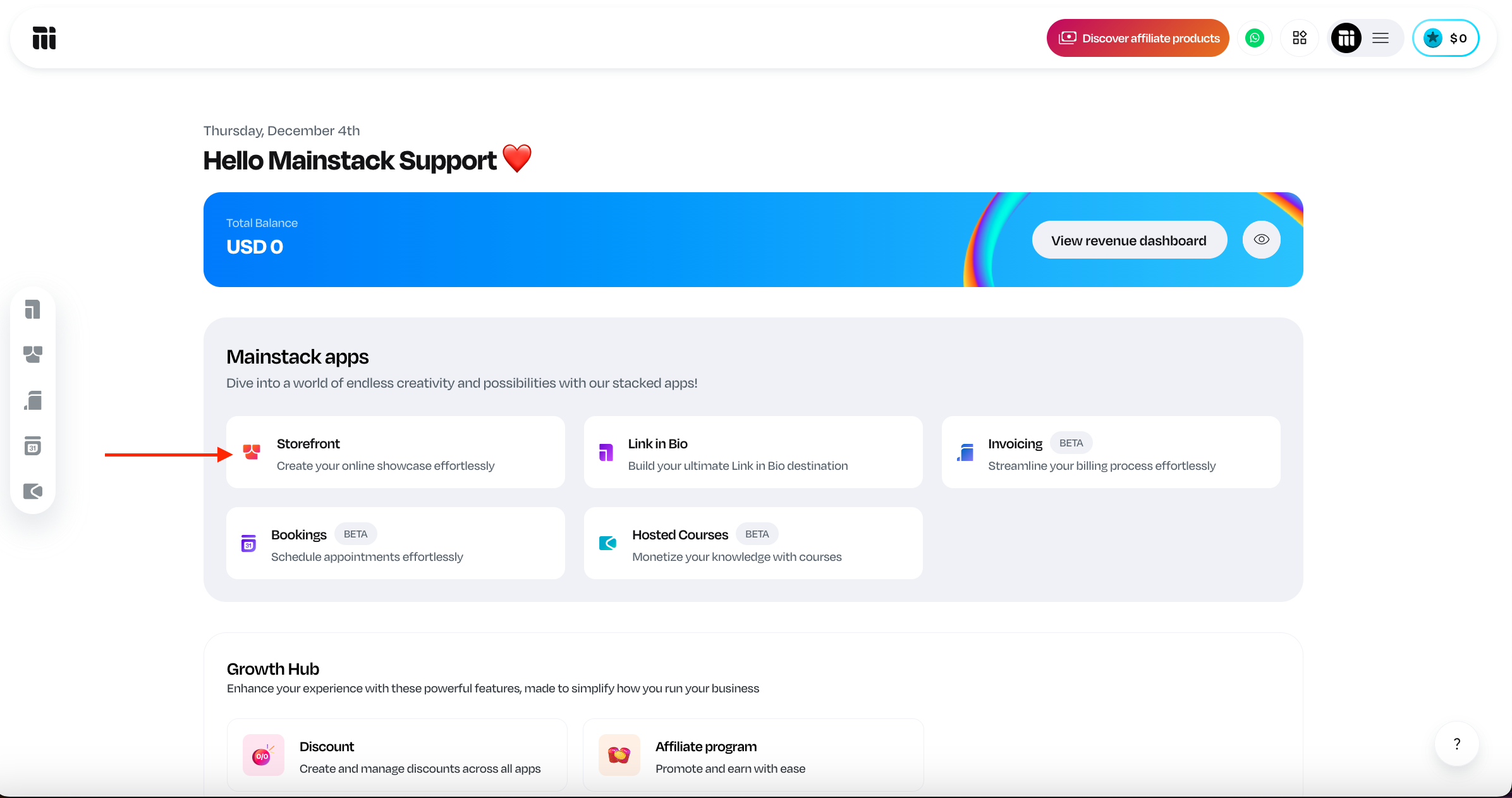
Click on the specific Event
Click on the Guest tab at the top of the event details page.
You will see the list of all guests who have registered for the event.
Click on the “Check in” button beside each guest to check them in.
Related Articles
How to Check in Guests using Web Scan
Log in to your Mainstack Dashboard. On the Home page, scroll to the Mainstack Apps section and click on Storefront. Click on the specific Event Click on the Guest tab at the top of the event details page. Click on the Check in via web scan button, ...
Step-by-Step Guide to Setting Up and Selling Event Tickets
Do you have an event coming up? Are you wondering how to create, manage, and sell tickets without stress? We know that organizing events can be time-consuming, from setting up registration to managing payments and keeping track of attendees. On ...
How to Manually Add Guests to an Event
Log in to your Mainstack Dashboard. On the Home page, scroll to the Mainstack Apps section and click on Storefront. Click on the specific Event Click on the Guest tab at the top of the event details page. Click on Add guest Select the ticket type ...
How to Send Emails to all Registered Guests
Log in to your Mainstack Dashboard. On the Home page, scroll to the Mainstack Apps section and click on Storefront. Click on the specific Event Click on the Guest tab at the top of the event details page. Click on Email Guest at the top right corner ...
How to View Your Referral Dashboard
Step 1: Log in to your account Step 2: Click on the "Gift Icon" at the bottom of the left sidebar to view your dashboard.